Your network drive will normally be integrated automatically. If you don’t see a drive, you can integrate it manually.
Find out which server contains the drive you want to integrate. Ask a colleague who already possesses a drive mapping to determine in Windows Explorer the path to the desired drive.
Depending on the server name and your operating system, you can determine how you can integrate a drive.
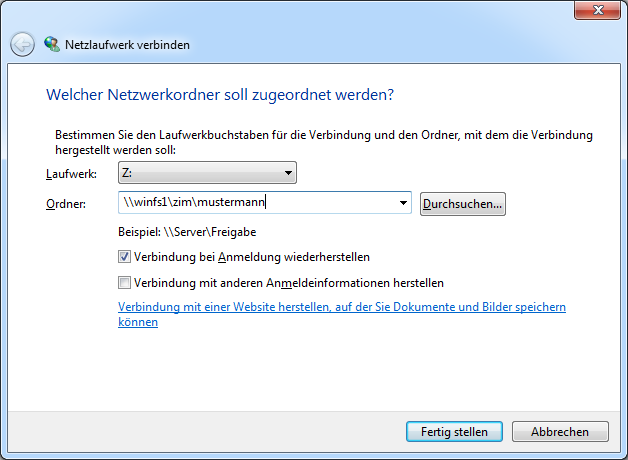
Right-click on 'This PC' (Windows 10) on your desktop or in Windows Explorer and select 'Connect network drive'.
Select a free drive letter. Enter the path you have determined, in the format \\Server name\Volume name\Directory name (e.g. \\winfs1\zim\mustermann) in the 'Folder' field. If a subfolder was shared with you, you must include it in the indicated path (e.g. \\winfs1\zim\mustermann\praesentationen\2017\).
Select the option 'Restore connection during login' and click 'Finish'.
The network drive is now connected to the selected drive letter.
You can remove a drive again by right-clicking on the desired drive and then clicking 'Disconnect'.