In addition to the security key for employees, we recommend the Microsoft Authenticator app as an app-based method for multi-factor authentication. You can easily install and use this app on your personal smartphone.
If you already have another authentication app (such as Google Authenticator, Authy, or a similar application) installed on your smartphone, you can also use it and link your Microsoft account there. In principle, any authentication app can be used regardless of the manufacturer, provided it supports the Time-based One-Time Password method (TOTP). To set up an alternative authentication app instead of the Microsoft Authenticator app, please follow these instructions.
Once set up, you can use the Microsoft Authenticator app via one-time codes or push notifications. Each time you log in, you can choose between one-time codes and push notifications. By default, we recommend that you log in with push notifications.
If this is the first MFA method you are setting up, the setup assistant for Windows Hello for Business will appear the next working day when you log in for the first time. Please follow the instructions and set up the desired method (fingerprint, facial recognition). A PIN must always be set up. If you would like to set it up at a later time, skip the setup wizard. To set up Windows Hello for Business yourself at any time, follow the instructions for Windows Hello for Business.
Use a current browser (e.g., Edge, Chrome, Firefox, or macOS Safari 16 or later). Outdated browsers or embedded WebViews (in apps) can cause errors such as “Browser not supported.”
During setup, you may be prompted to install the Microsoft Authenticator app on your smartphone—to do so, scan the QR code or open the App Store link.
Sign in at https://aka.ms/mysecurityinfo. You should be located under "Security Info" in the left-hand navigation. Click "Add Sign-In Method".
![[Translate to Englisch:] Mircosoftauthenticator App\einrichten](/fileadmin/_processed_/b/e/csm_Microsoft_Authenticator_0_f73ac03b1c.png)
A window will open with login methods. Select "Microsoft Authenticator" from the list of methods.
![[Translate to Englisch:] Mircosoftauthenticator App\einrichten](/fileadmin/hilfe-portal/digital_workspace/Screenshots_2FA/Microsoft_Authenticator_1.png)
Download and install the Microsoft Authenticator app on your smartphone (if you haven't already). Then click "Next".
![[Translate to Englisch:] Mircosoftauthenticator App\einrichten](/fileadmin/hilfe-portal/digital_workspace/Screenshots_2FA/Microsoft_Authenticator_2.png)
A message will appear asking you to set up an account in the authenticator app.
You can skip this message by clicking "Continue".
![[Translate to Englisch:] Mircosoftauthenticator-App\einrichten](/fileadmin/hilfe-portal/digital_workspace/Screenshots_2FA/Microsoft_Authenticator_3.png)
A QR code will be displayed. Scan it with your smartphone.
Leave the window open and switch to the Microsoft Authenticator app. Only click "Next" after completing step 7 and scanning the QR code.
![[Translate to Englisch:] Microsoft Authenticator 4 (blurred)](/fileadmin/hilfe-portal/digital_workspace/Screenshots_2FA/Microsoft_Authenticator_4__blurred_.png)
Open the Authenticator app, tap the QR code icon in the bottom right corner to add a new account.
![[Translate to Englisch:] Mircosoftauthenticator App\einrichten](/fileadmin/hilfe-portal/digital_workspace/Screenshots_2FA/Microsoft_Authenticator_5-1.PNG)
Point your camera at the displayed QR code to link your account. If the QR code is successfully scanned, an entry will automatically be created in the authenticator app.
Then switch back to your PC and click "Next".
![[Translate to Englisch:] Microsoft Authenticator 5-2 (blurred)](/fileadmin/hilfe-portal/digital_workspace/Screenshots_2FA/Microsoft_Authenticator_5-2__blurred_.png)
Microsoft is now testing the connection – an authentication request is being sent to your smartphone.
You will see this request on your PC in the Microsoft portal and after a few seconds also in the Microsoft Authenticator app.
![[Translate to Englisch:] Mircosoftauthenticator App\einrichten](/fileadmin/hilfe-portal/digital_workspace/Screenshots_2FA/Microsoft_Authenticator_6__2_.png)
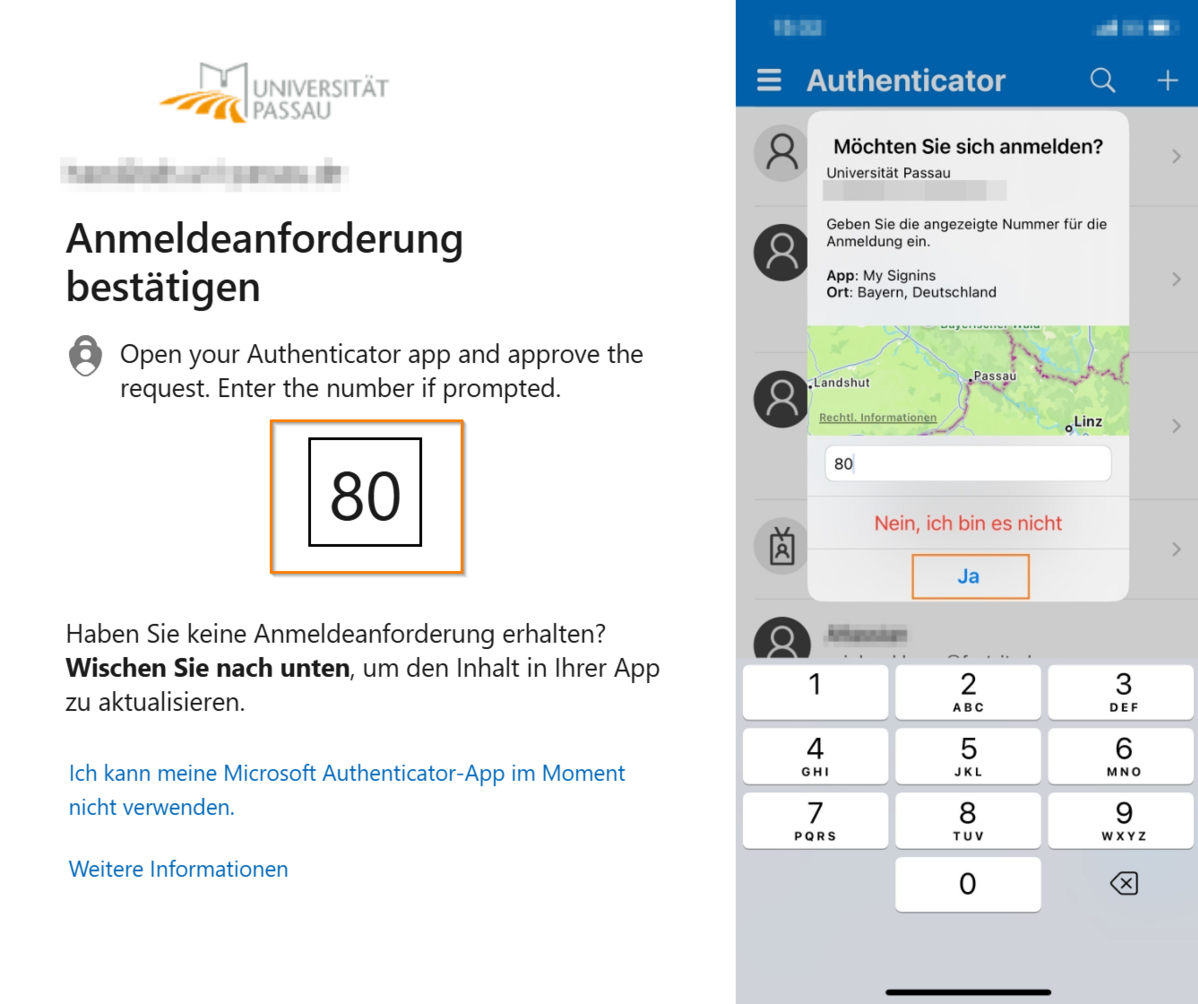
Switch back to the authenticator app. Enter the displayed number and confirm with "Yes" to authorize the login attempt.
![[Translate to Englisch:] Mircosoftauthenticator App\einrichten](/fileadmin/hilfe-portal/digital_workspace/Screenshots_2FA/Microsoft_Authenticator_7.PNG)
The test is successfully completed once you receive the confirmation: "Notification approved". You can click "Next".
![[Translate to Englisch:] Mircosoftauthenticator App\einrichten](/fileadmin/hilfe-portal/digital_workspace/Screenshots_2FA/Microsoft_Authenticator_8.png)
Your smartphone has been successfully registered using the Microsoft Authenticator – Push Notification method.
You can now see it in your security information overview and use it to confirm logins.
![[Translate to Englisch:] Mircosoftauthenticator App\einrichten](/fileadmin/_processed_/8/f/csm_Microsoft_Authenticator_9_ae323f1c96.png)
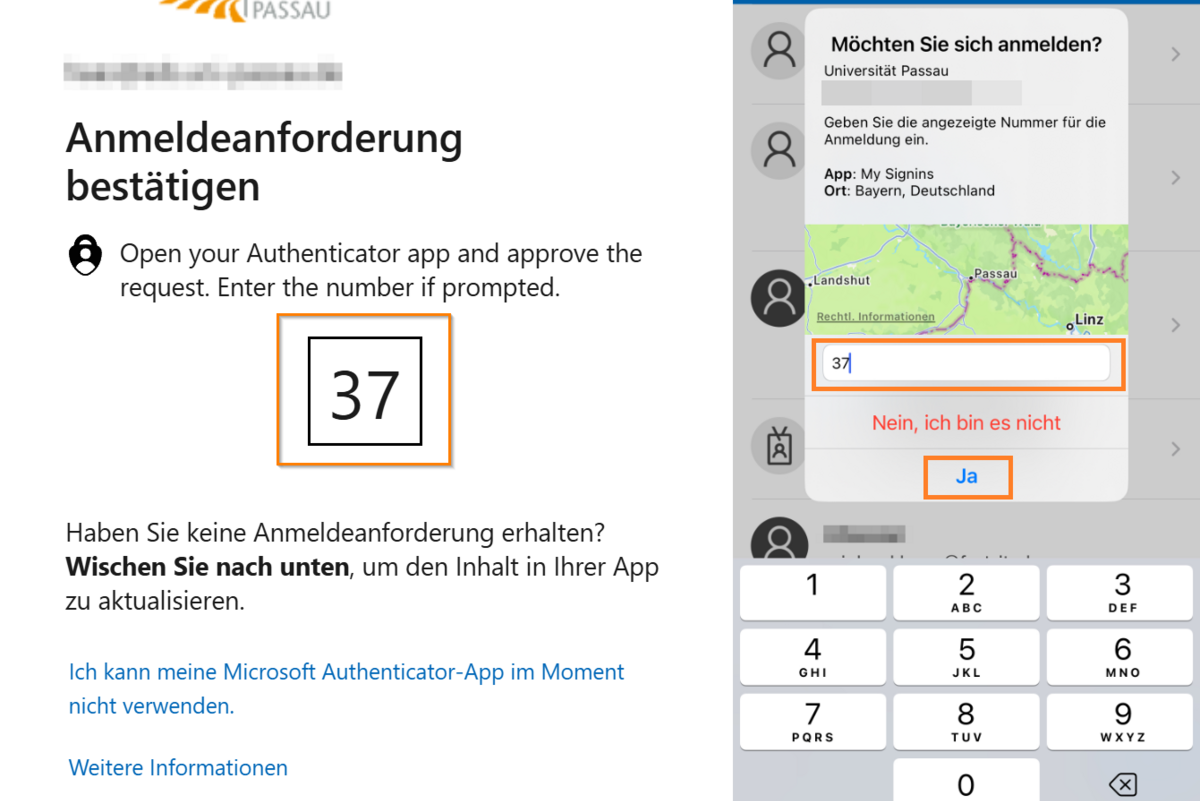
Once the Microsoft Authenticator app is set up, log in to IT services as you would with your username (format: ZIM-Kennung@ads.uni-passau.de) and password. You will then be prompted on the login screen to confirm the login process via the app by entering the two-digit number displayed there.
At the same time, the Microsoft Authenticator app will send a notification to your smartphone (push notification). Open this message, enter the two-digit number, and confirm the login with “Yes” to grant access.
If the number matches, you should be successfully logged in.
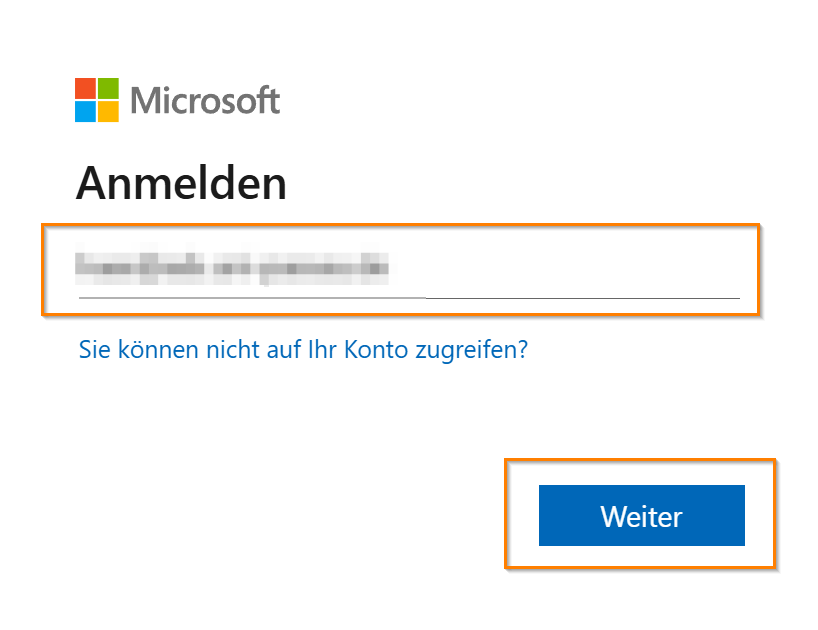
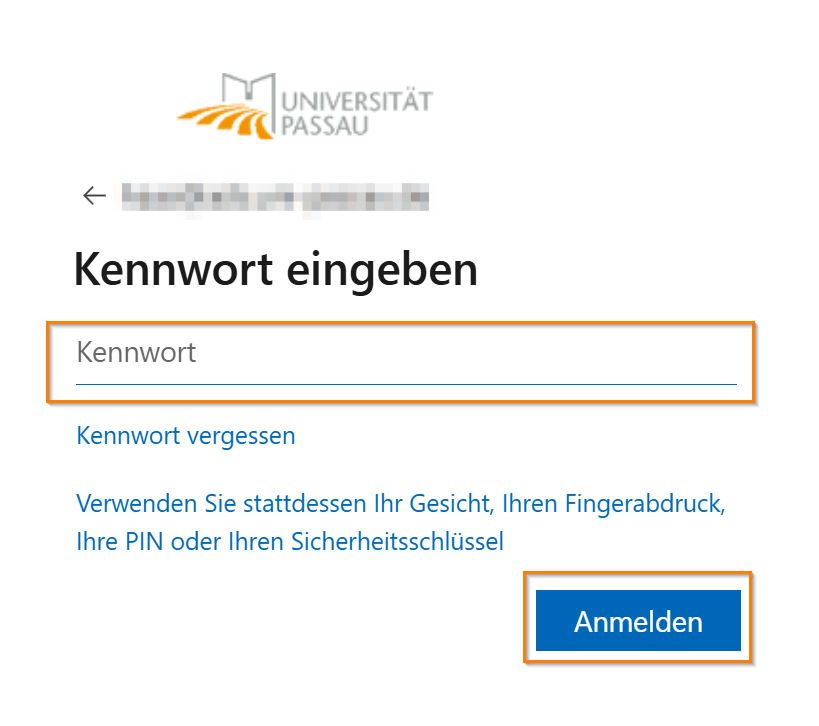
2. After logging in with your username and password, a window will appear for selecting the second factor. Select the option “Confirm a request in my Microsoft Authenticator app.”
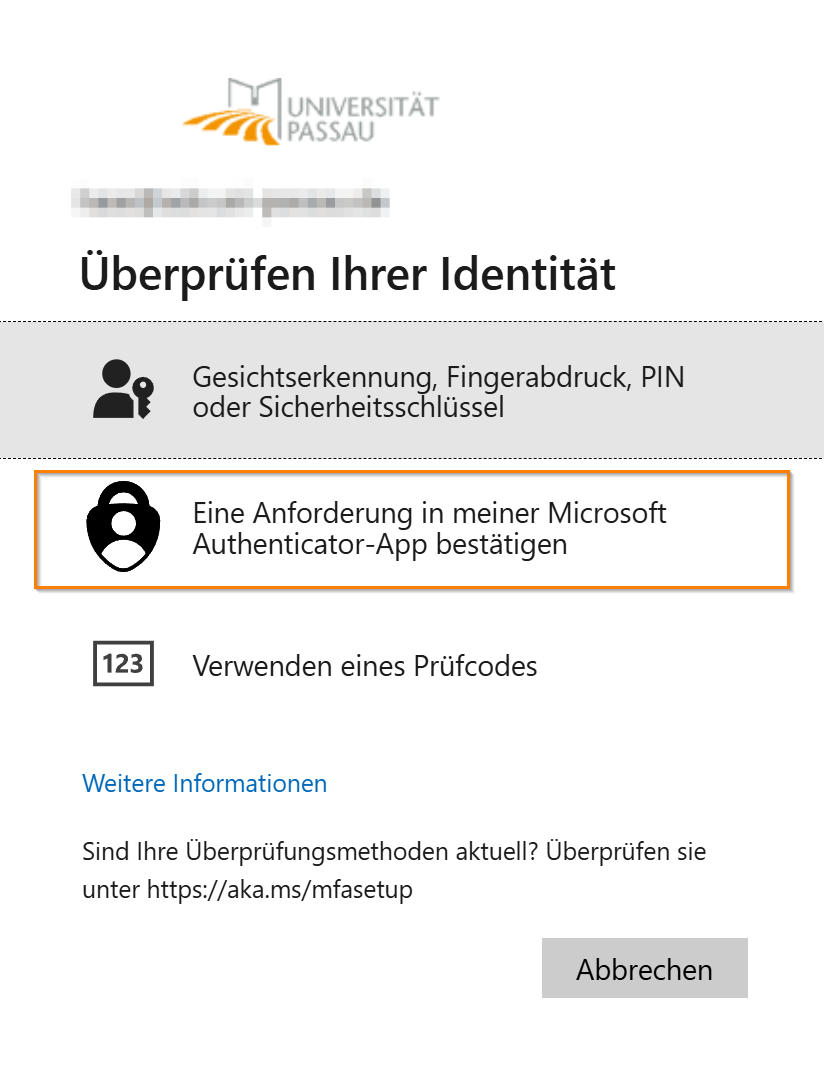
3. You will then be prompted to approve the login in the Microsoft Authenticator app.
To do this, open the Microsoft Authenticator app. The approval request should appear automatically after a few seconds. If necessary, swipe down on the screen to refresh the requests.
A dialog box will now appear. Enter the number displayed on your PC and confirm with “Yes.”
If everything worked, you will be logged in on your PC. You can close the app.
If you want to remove the link to an account in the Microsoft Authenticator app, please follow these steps: