To work with Citrix on your personal device, you need to install the Citrix Workspace app. Below you'll find links to the latest versions for Windows, macOS, Linux, iOS, and Android, as well as step-by-step installation instructions.
For Windows basic operating systems please visit:https://www.citrix.com/downloads/workspace-app/workspace-app-for-windows-long-term-service-release/workspace-app-for-windows-LTSR-25071.html
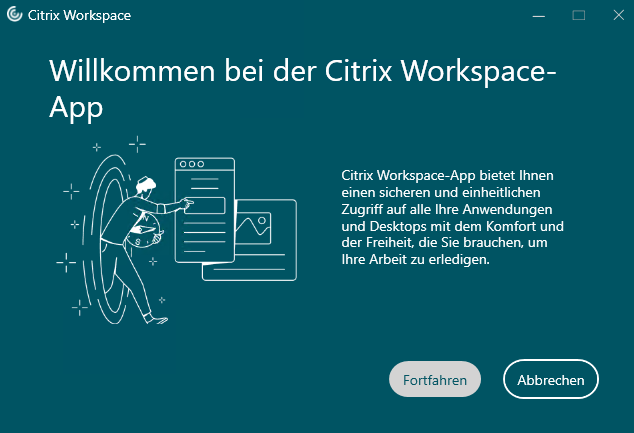
After downloading the Citrix Workspace app, run the file "CitrixWorkspaceApp.exe" located in your device's download folder. The installation window will then open.
![[Translate to Englisch:] Bild Anleitung Teams](/fileadmin/_processed_/2/6/csm_Citrix_Workspace_App_Windows_Teams_d4f591640f.png)
Step 2:
During the Workspace app installation, you will be offered the option to install additional plugins. Please select only the Teams plugin and install the Zoom and Skype plugins via the links in the help portal to avoid incompatibilities.
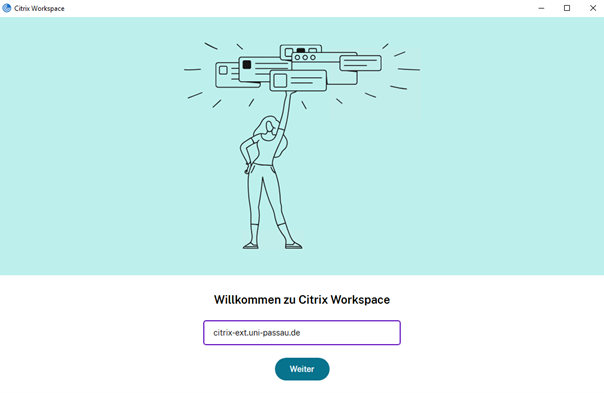
Complete the installation. A new window will then open. Now enter the following University of Passau account for external access: citrix-ext.uni-passau.de
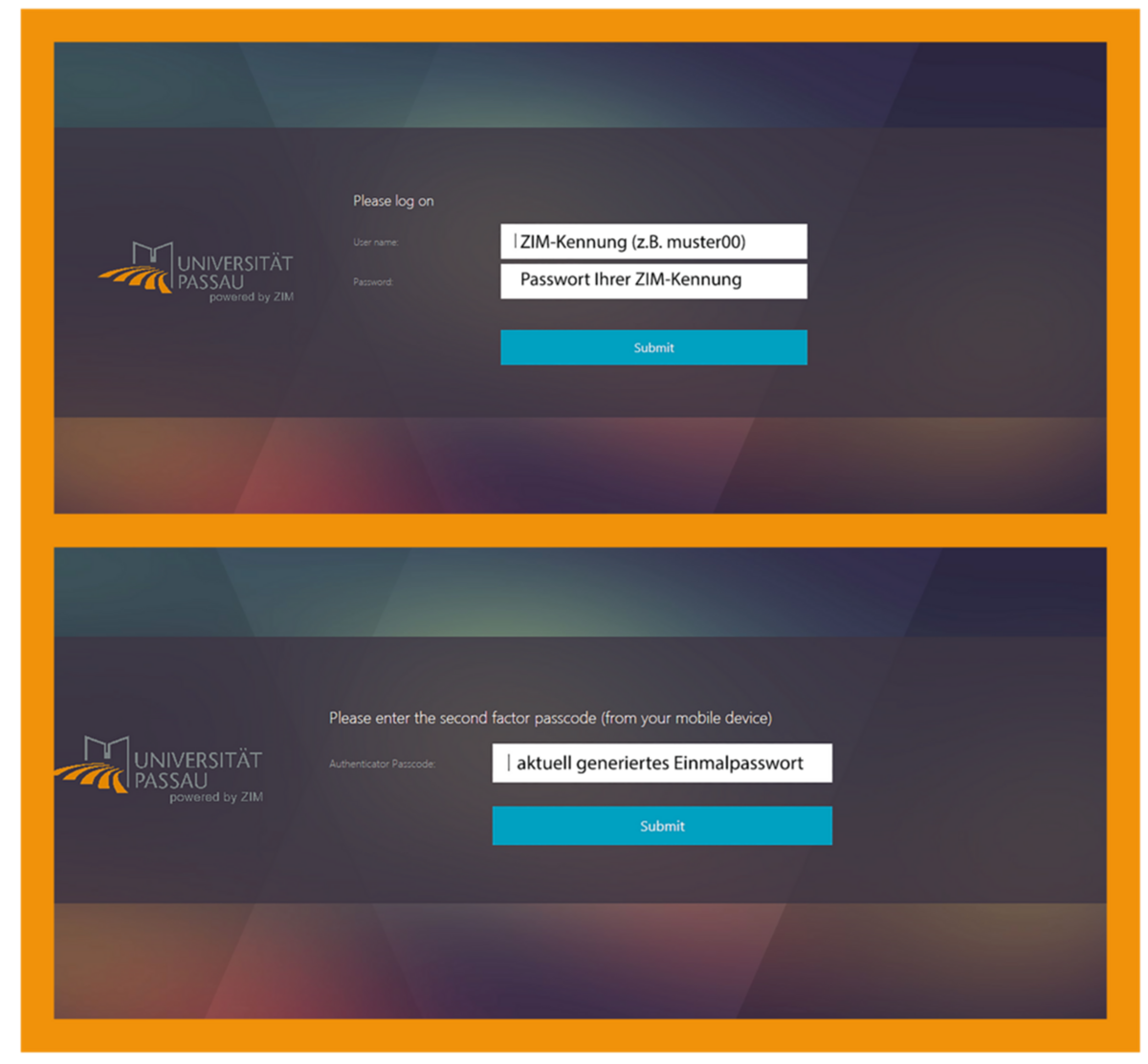
After entering your account details, "Citrix Workspace" will open automatically and prompt you to log in.
First, you must log in with your ZIM ID and password. Then, enter the one-time password generated by the "Google Authenticator" app.
For MacOS basic operating systems, please visit:
https://www.citrix.com/de-de/downloads/workspace-app/mac/workspace-app-for-mac-latest.html
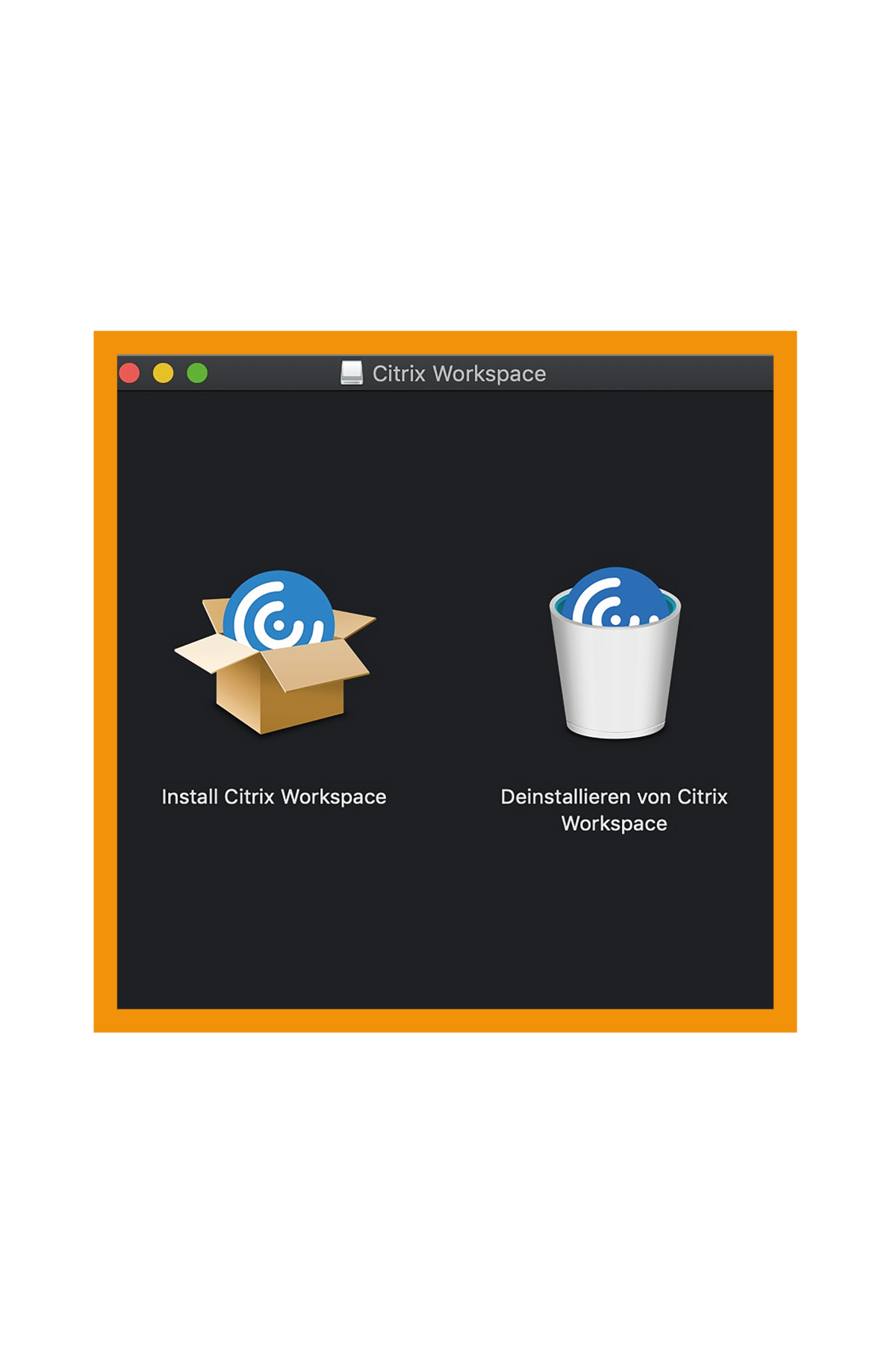
Click on the file 'CitrixWorkspaceApp.dmg' that you will find in the download folder of your device after downloading it. Then this request window will open up:
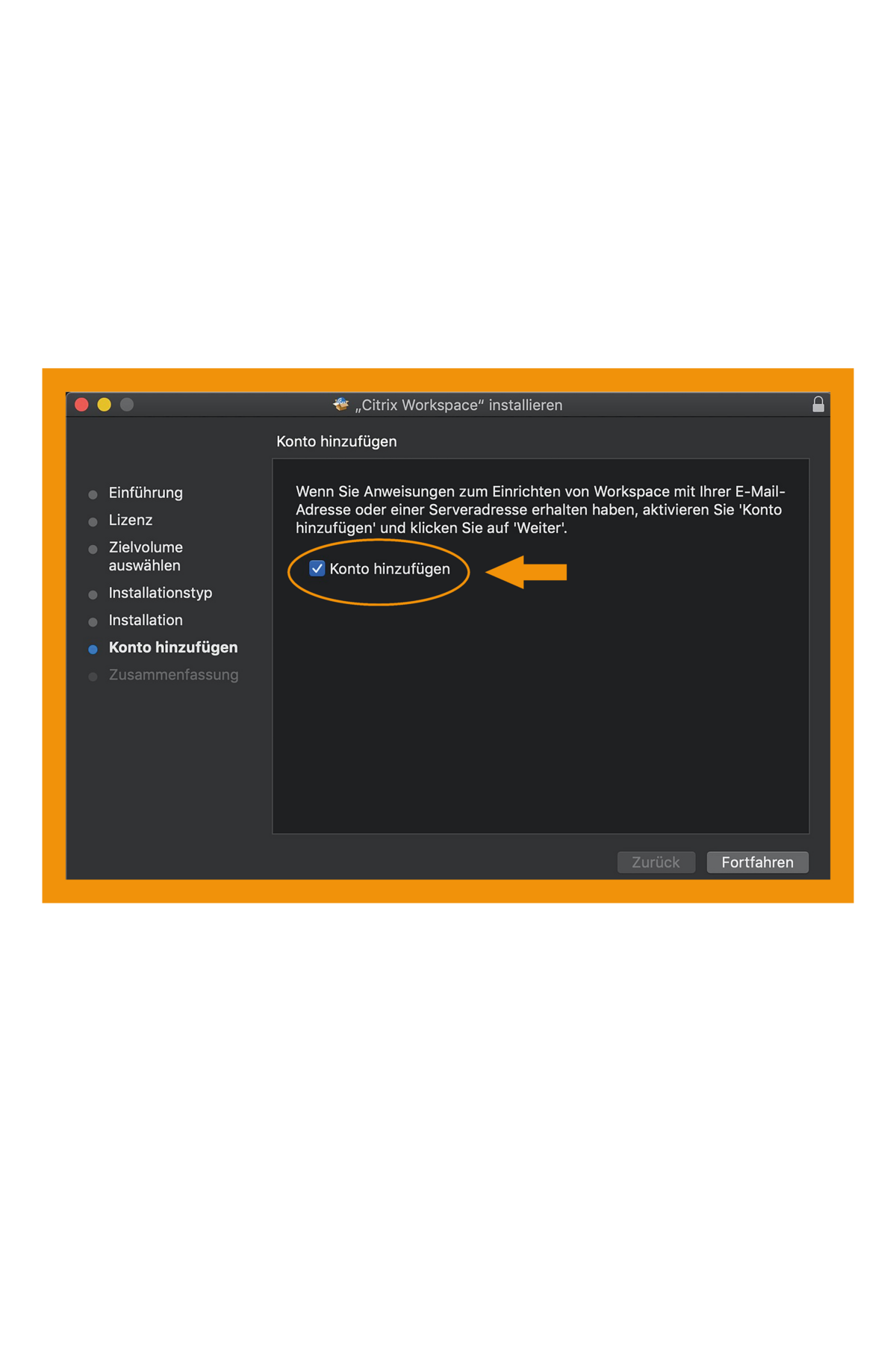
Click on 'install Citrix Workspace' and go through the installation procedure. At the end of the procedure, you will be asked if you want to add an account. Click on 'yes'.
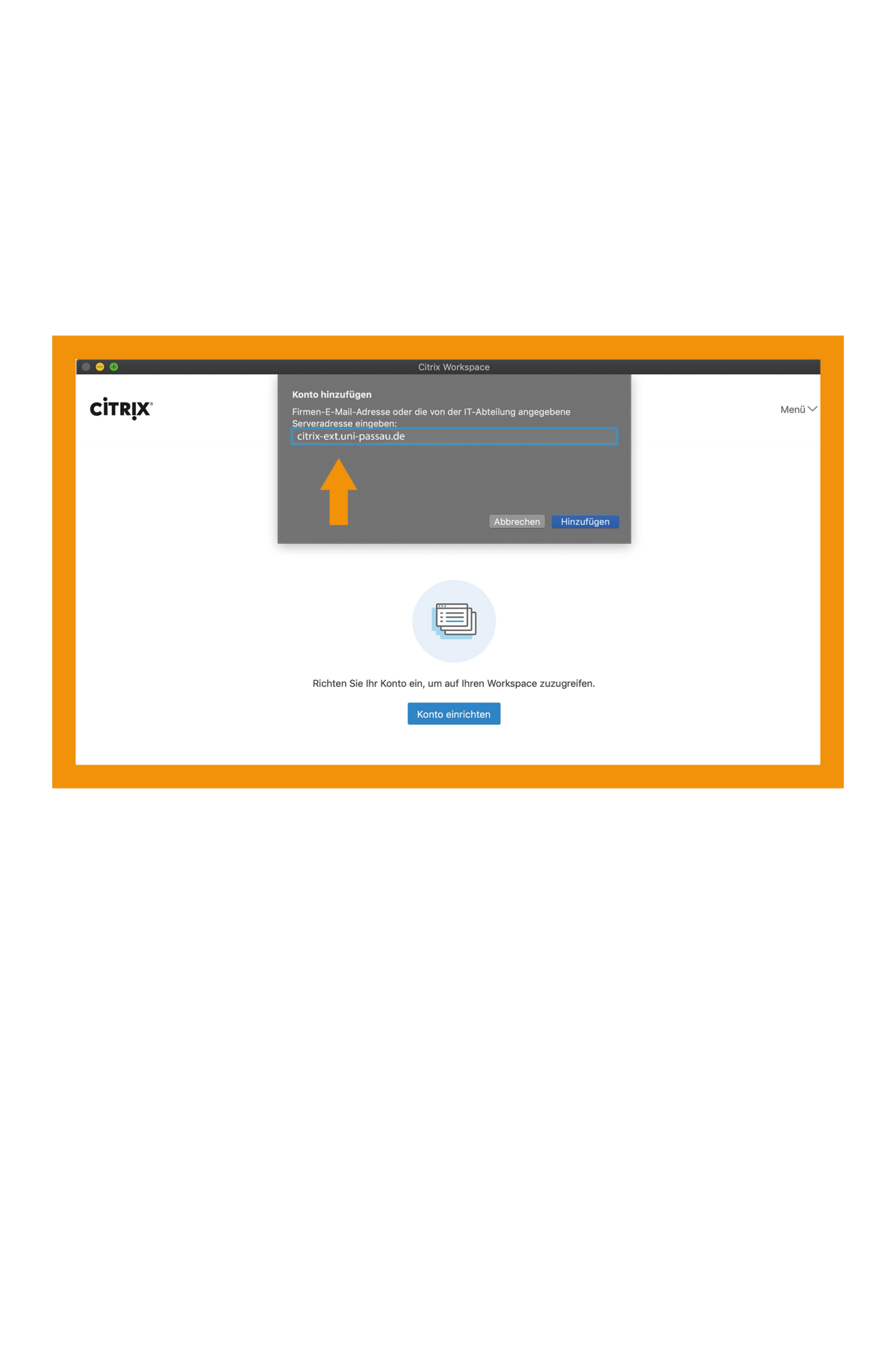
Enter now the following account of the University of Passau for external access: citrix-ext.uni-passau.de
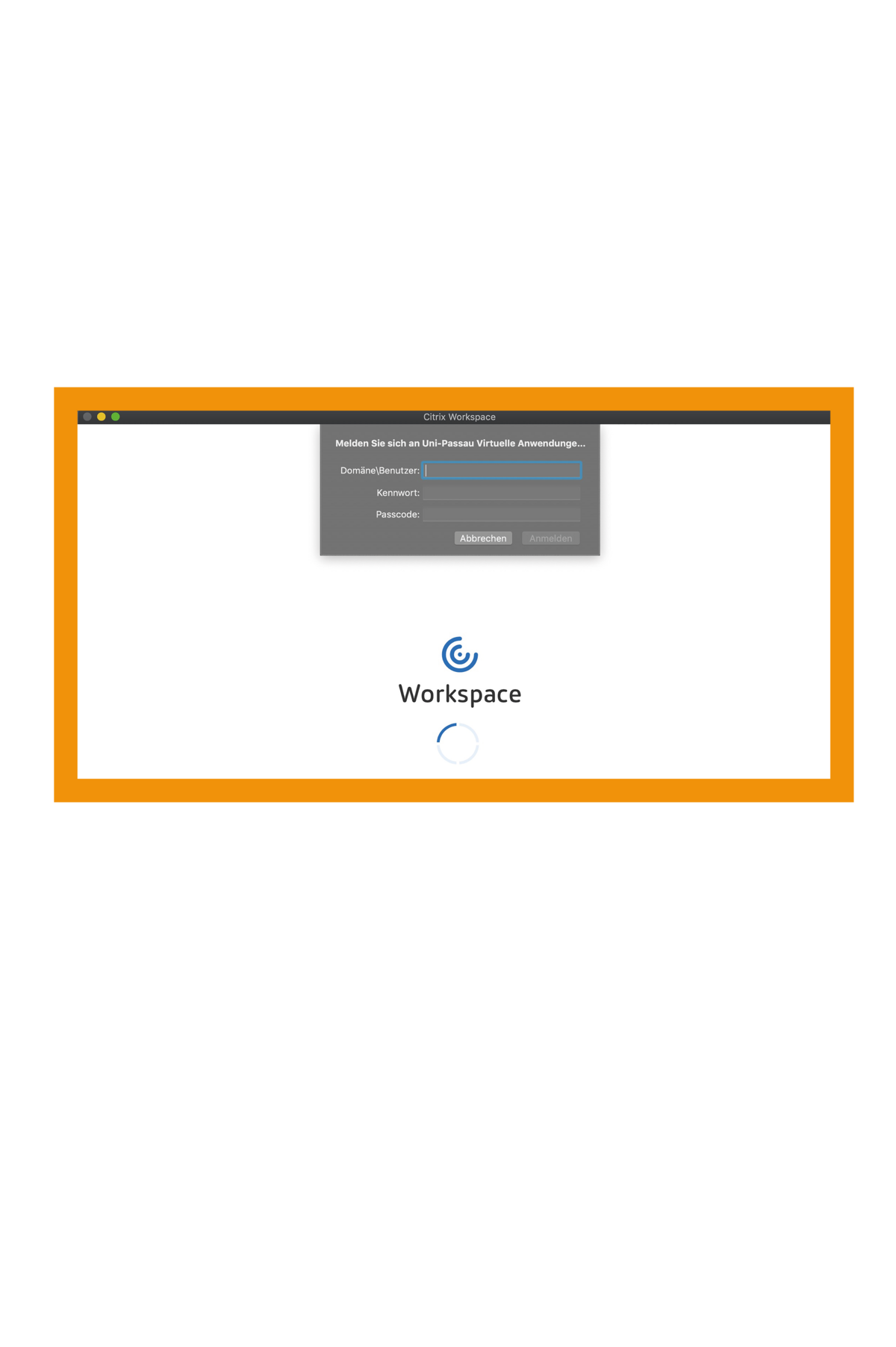
After entering the account, the 'Citrix Workspace' opens automatically and requests that you log in. Sign in here with your ZIM ID including password and the current generated one-time password.
For Linux basic operating systems, please visit:
https://www.citrix.com/de-de/downloads/workspace-app/linux/workspace-app-for-linux-latest.html
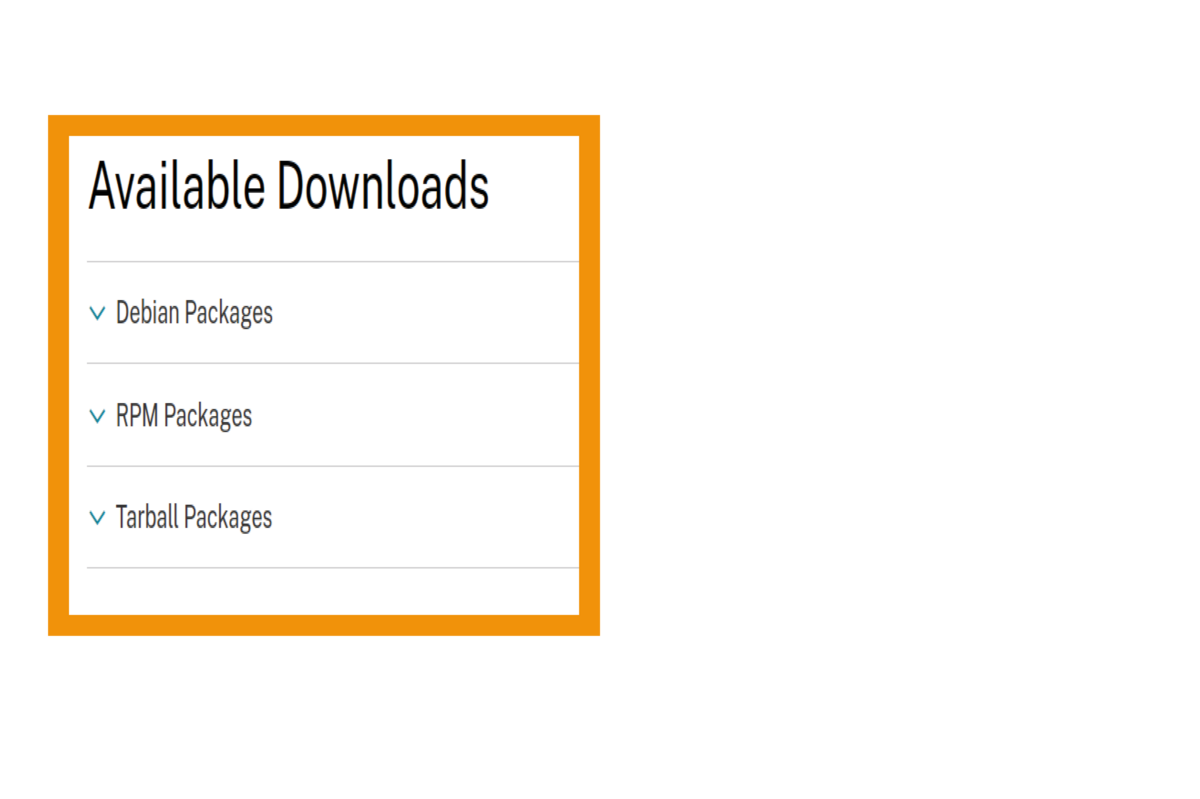
Download the necessary programs for Linux
Depending on the distribution used, various packages are offered for download.
Follow the installation instructions for your operating systems in the documentation of the manufacturer.
Please note that several packages need to be installed, in order to be able to use the full functional scope. You can find the installation packages on the download page of the manufacturer under the respective package source:
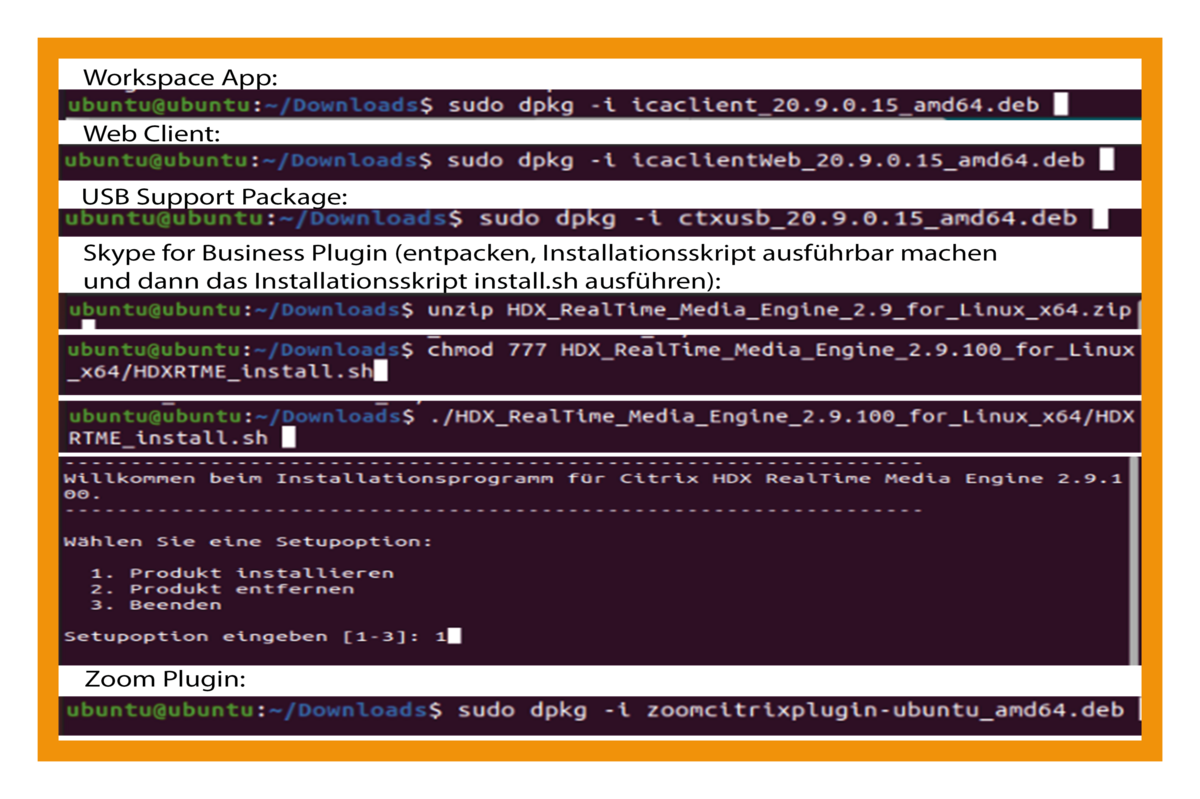
Carry out the installation. In the photo, you can see the installation process using the example of Ubuntu 20.04 LTS 64 Bit.
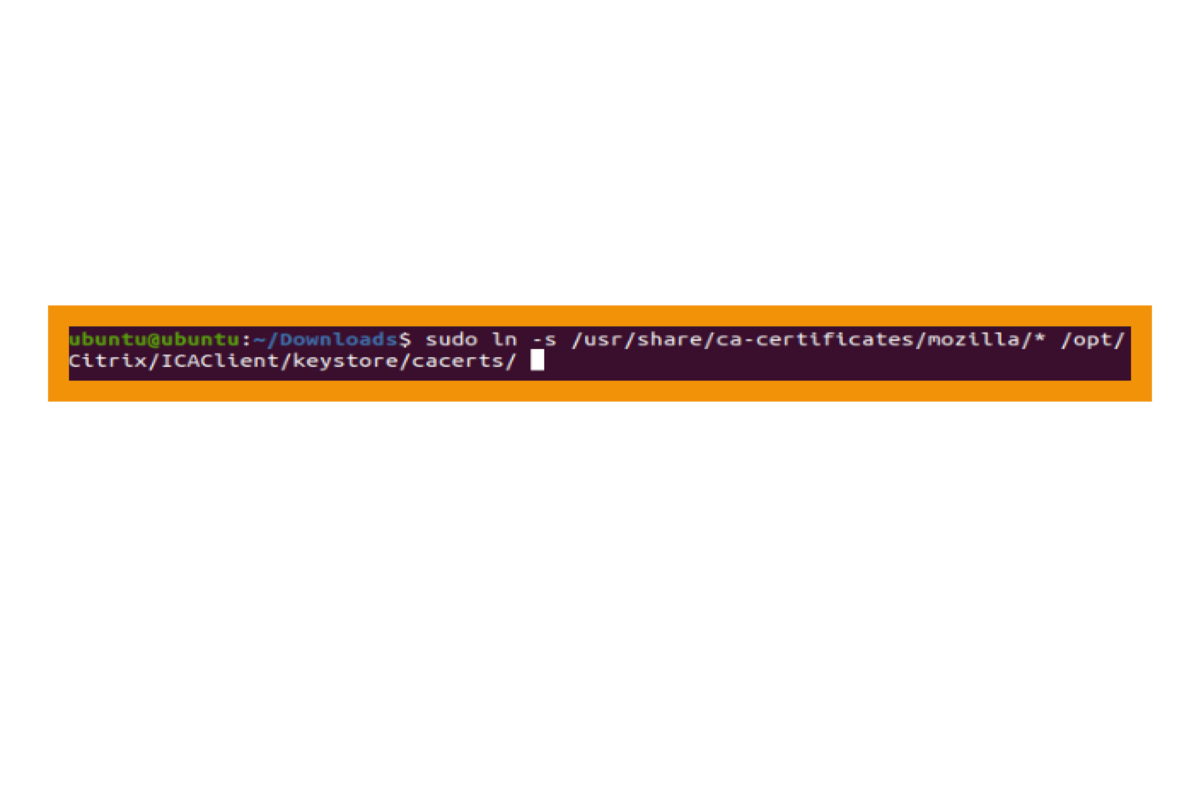
Certificate error:
According to the configuration, it can happen that certificate errors occur when connecting to the Workspace. In order to avoid this, the certificate store of the Workspace app can be linked to the certificate store of Firefox. In this way, the required root certificates are also recognised in the Workspace app.
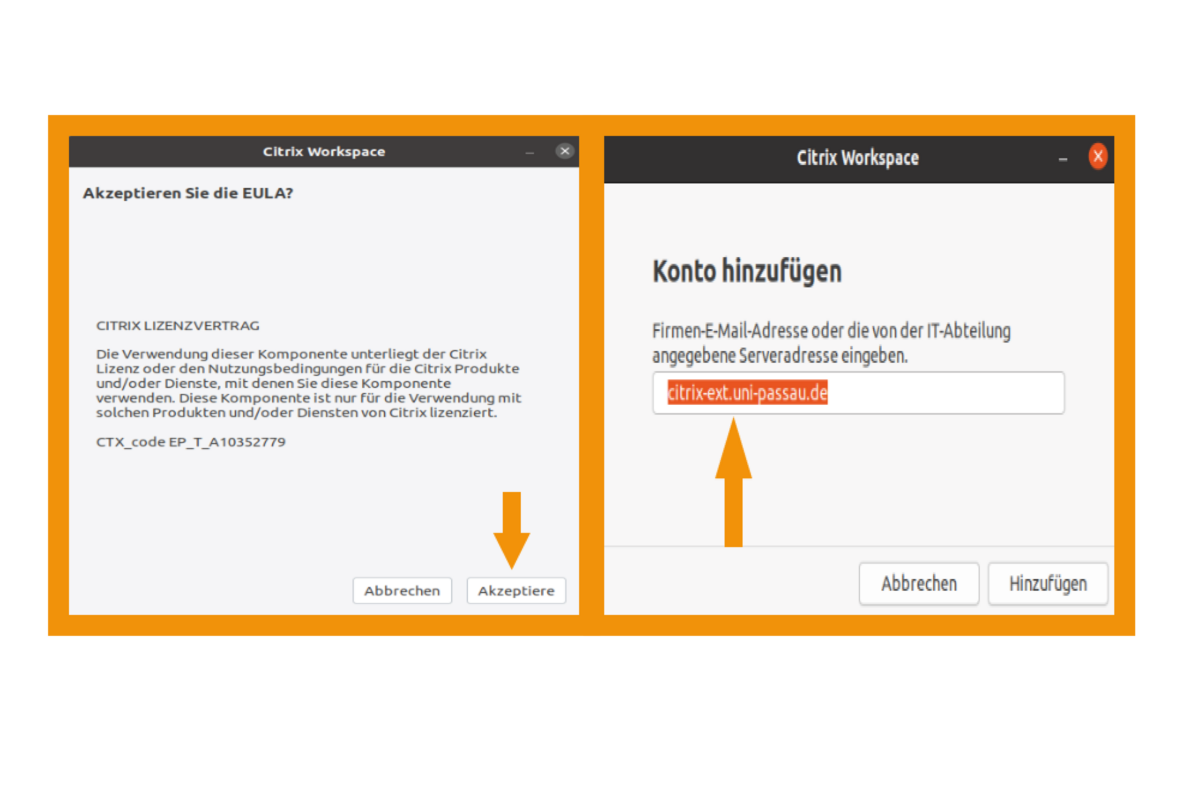
Start and configure the Citrix Workspace App. Call up the app via the program menu (or via the command line).
Accept the EULA.
Carry out the installation to the end. Now go to the following account of the University of Passau for the external access: citrix-ext.uni-passau.de Click here on 'add'.
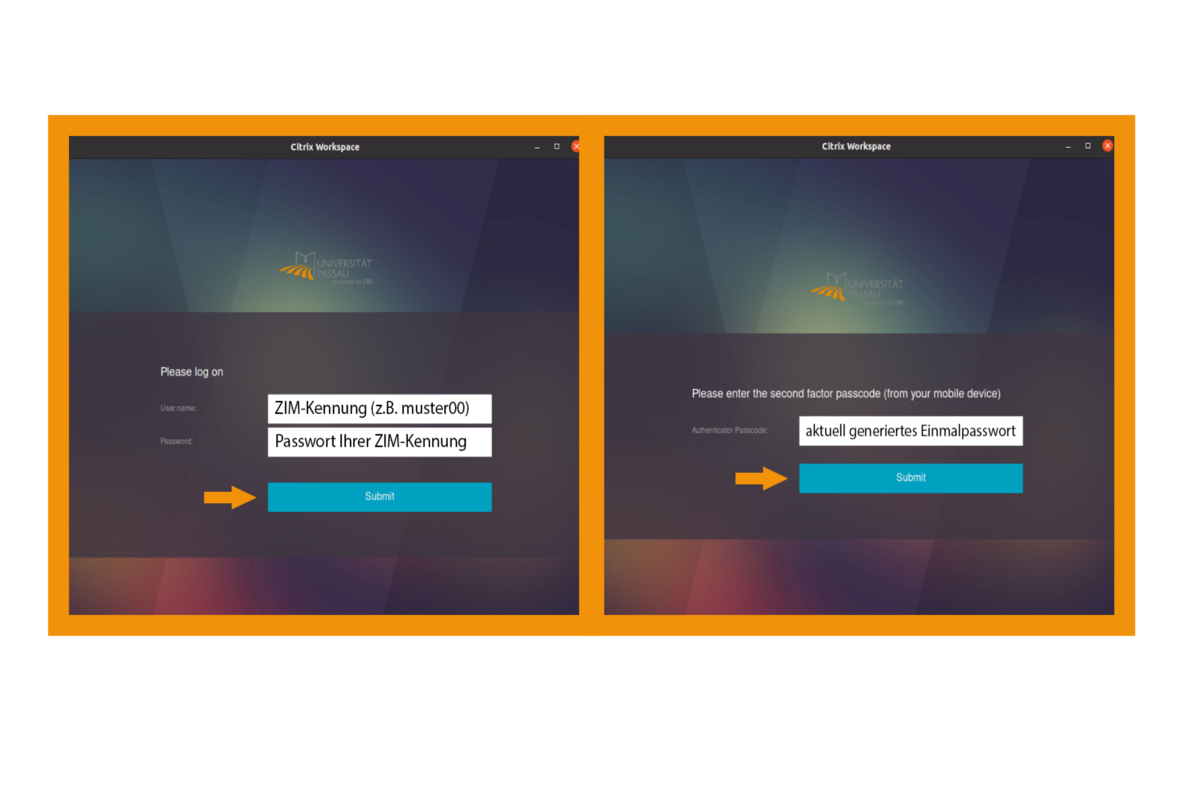
After entering the account, the 'Citrix Workspace' opens automatically and requests that you log in.
Sign in here with your ZIM ID including password and the current generated one-time password.
For Android basic operating systems, please visit the Google Play Store: https://play.google.com/store/apps/details?id=com.citrix.Receiver
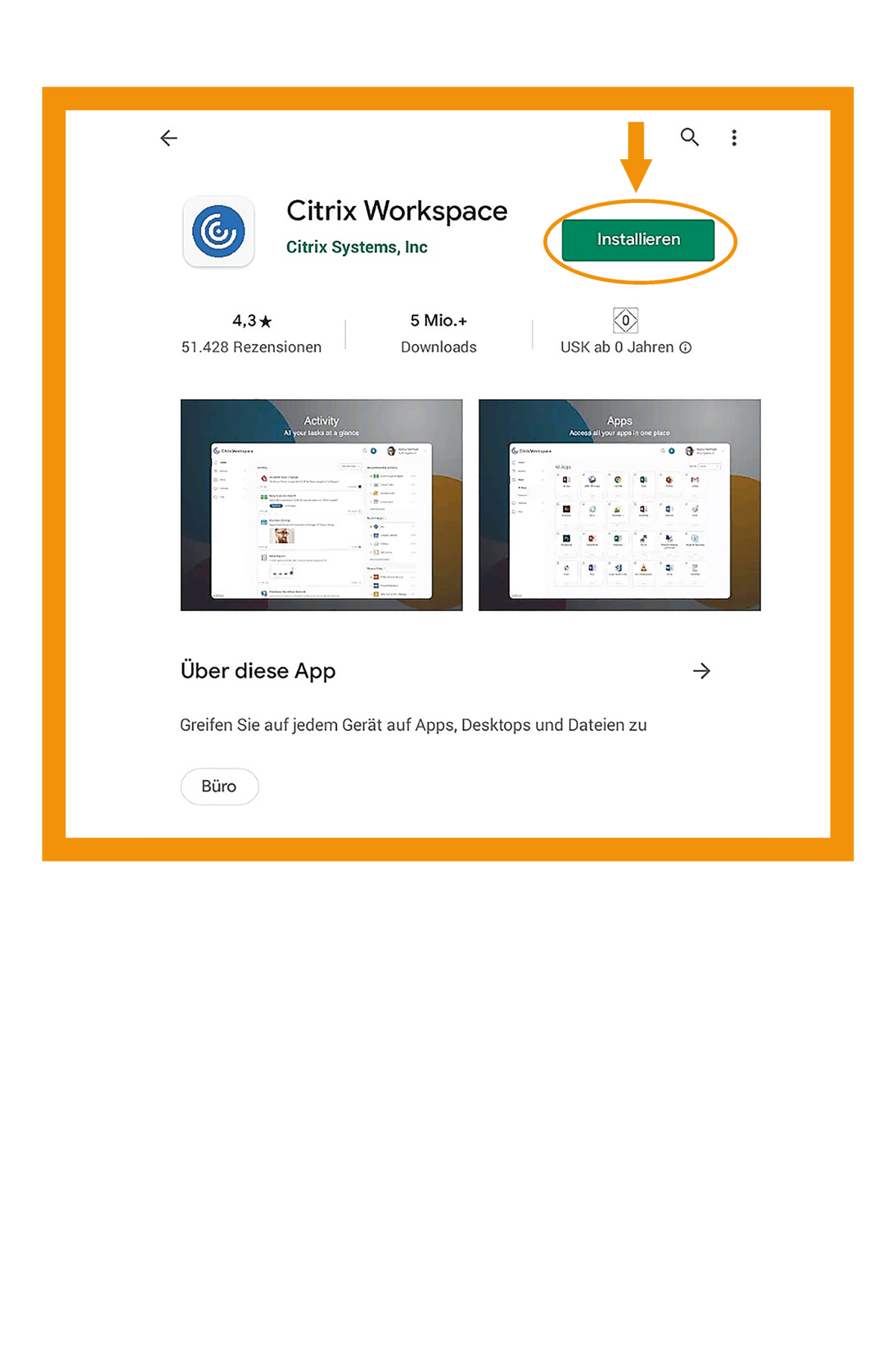
Open the Play Store on your Android device and search for the 'Citrix Workspace' app there.
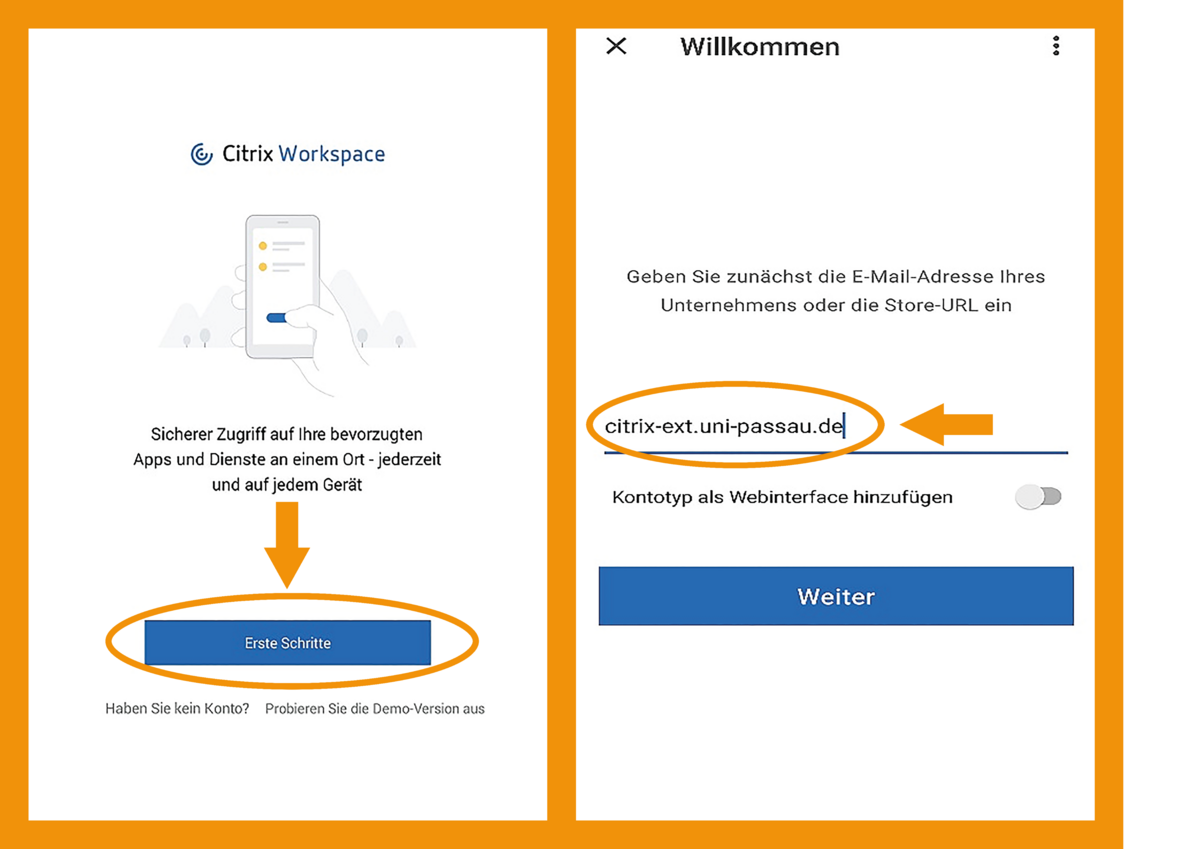
After the app is installed on your device, you can open it and you will see these screens.
Click on 'first steps'. You will then be asked to enter the account of your company. This is citrix-ext.uni-passau.de.
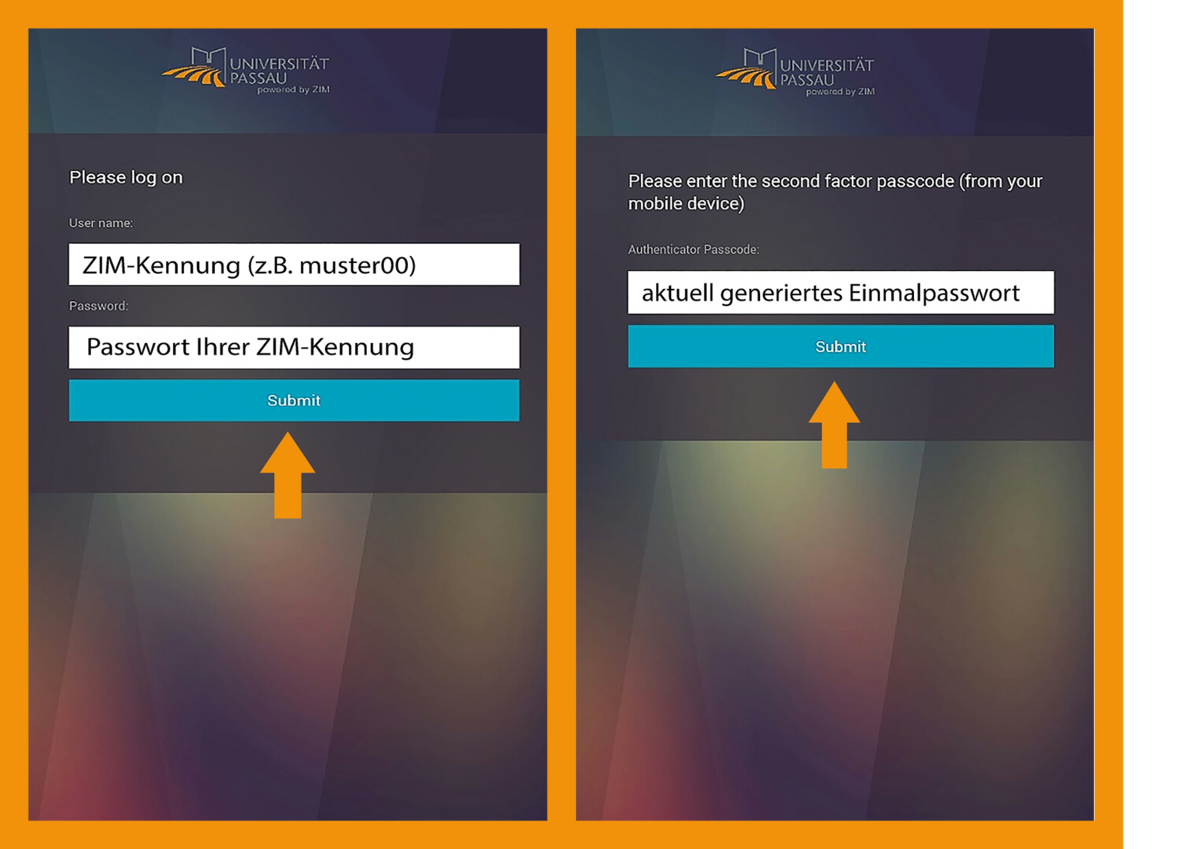
After entering and confirming the account, you will be forwarded to the screen on which you can log in yourself.
First, enter your ZIM ID and your password. You will then be asked to enter the current one-time password generated from the Google Authenticator app. Now you have access to your Android device via Citrix.
For iOS basic operating systems, please visit the App Store: https://apps.apple.com/de/app/citrix-workspace/id363501921
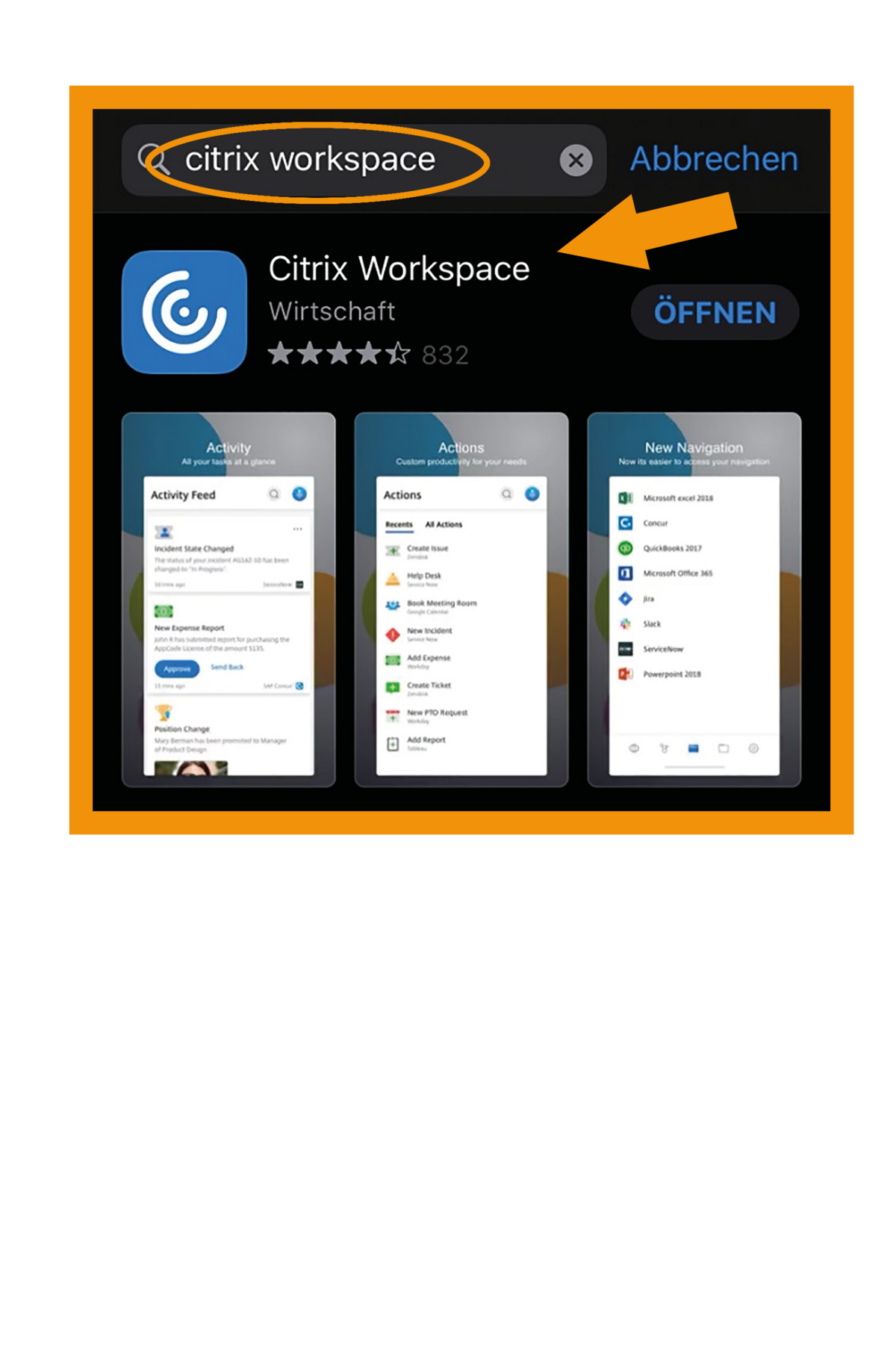
First, open the App Store on the iOS device and search for the 'Citrix Workspace' app there.
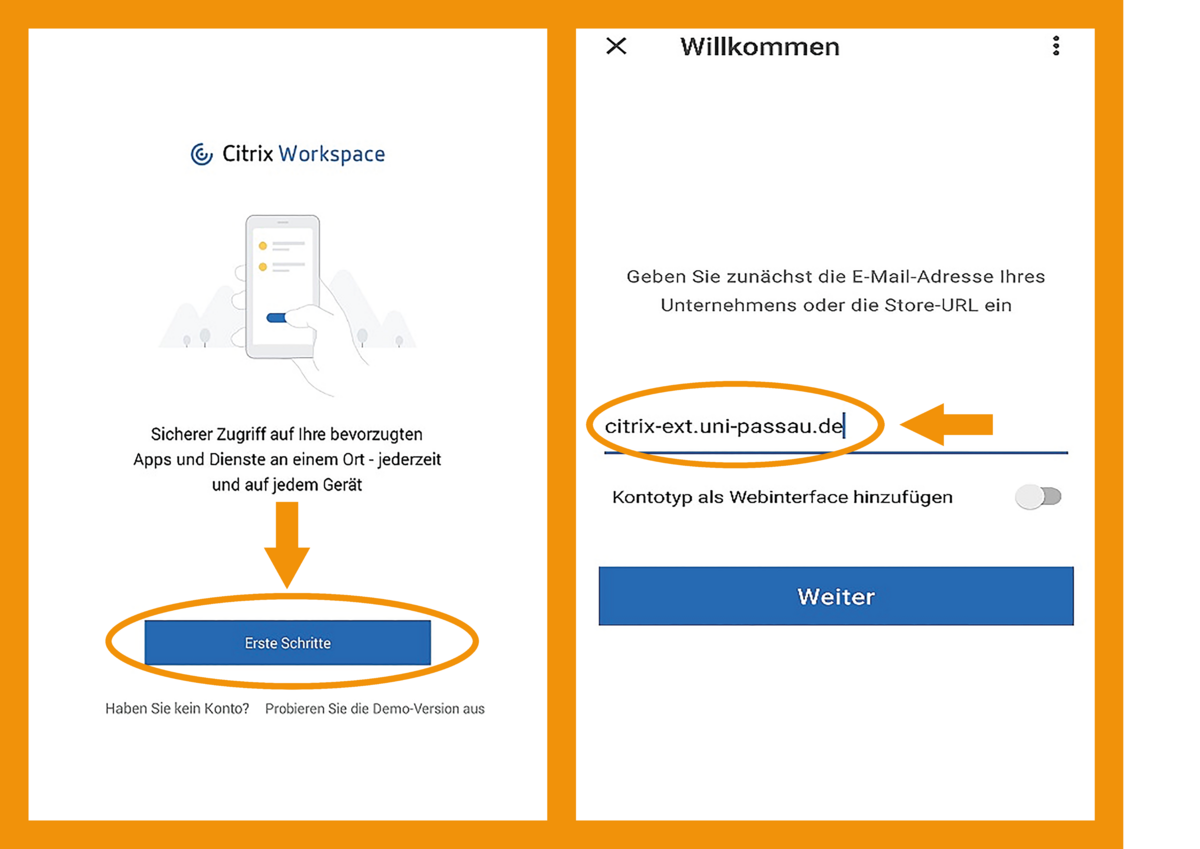
After the app is installed on your device, you can open it and you will see these screens. Click on 'first steps'. You will then be asked to enter the account of your company. This is citrix-ext.uni-passau.de.
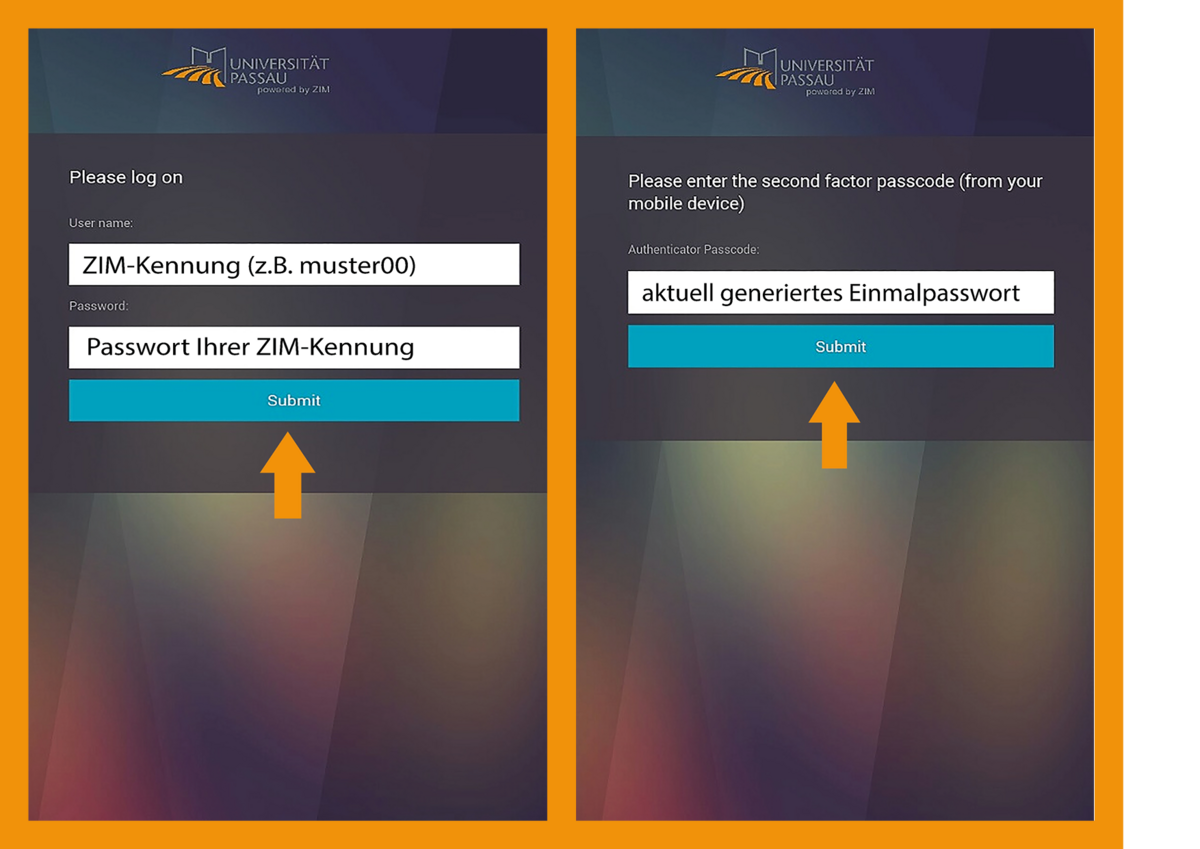
After entering and confirming the account, you will be forwarded to the screen on which you can log in yourself.
First, enter your ZIM ID and your password. You will then be asked to enter the current one-time password generated from the Google Authenticator app. Now you have access to your iOS device via Citrix.
Note:
If you have trouble logging into Citrix via the desktop app, please use the online access in exceptional cases.
Would you like to install Citrix on your ZIM work device? Follow the instructions required for this.
You can download our guide for further information.
If anything is still unclear, take a look at our FAQs.