Below we explain how you can manually setup the WWW proxy of the ZIM in your browser if the automatic method is not working or if you are using the wired access routes in the reading rooms of the University Library.
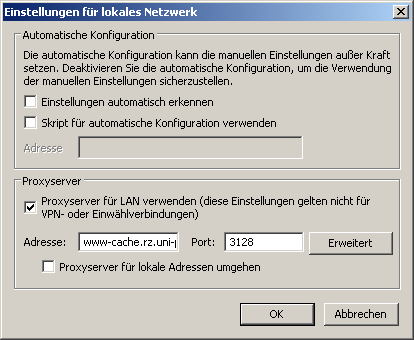
Select under 'Extras' or the gearwheel symbol the item 'Internet options'; in the dialogue window that then appears, select the tab 'Connections'. Click on 'LAN settings'. A new dialogue box 'Settings for a local network' (see Screenshot) appears. Select 'Use proxy server for LAN' and enter the address 'www-cache.rz.uni-passau.de' and as port '3128'.
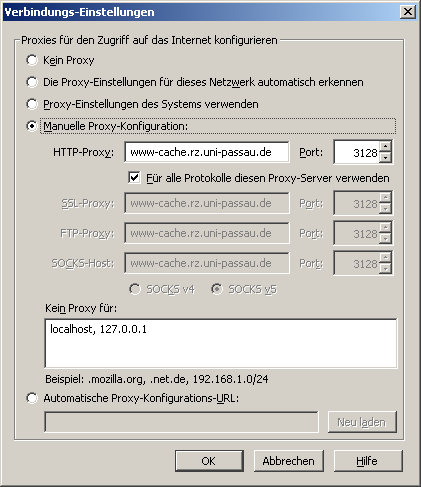
Select 'Extras -> Settings'. Click on the icon 'Advanced' and then on the tab 'Network'. Under 'Connection' click on 'Settings...'. Another new dialogue window will open, 'Connection Settings' Select here 'Manual proxy configuration' and enter as 'HTTP proxy' 'www-cache.rz.uni-passau.de' and as port '3128' and then select 'Use this proxy server for all protocols'.
This browser uses the proxy settings of Internet Explorer.