

Manage MFA

Switch MFA methods
If you log in to university services and use the Authenticator app as your second factor by default, you can switch to a different method when logging in as follows:
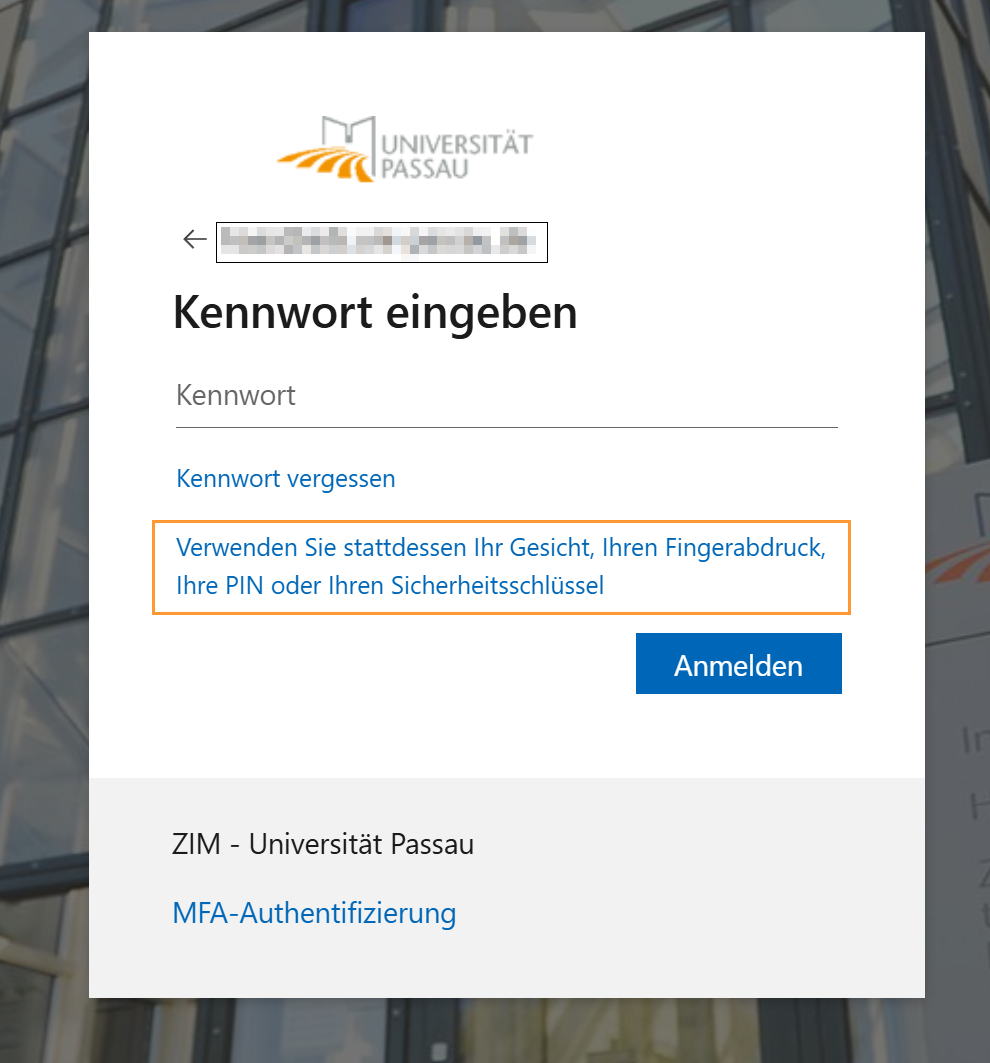
On the login page, click on the option “Use your face, fingerprint, PIN, or security key instead”.

If you have set up Windows Hello for Business on the device you are logging in from, this method will be displayed first. Here you can choose between the methods you have set up (PIN, facial recognition, or fingerprint).
Please note: Windows Hello for Business is device-specific and must be set up separately on each of your ZIM-managed devices.
If you would prefer to use a security key (YubiKey) or a passkey with the Microsoft Authenticator app , select "Use a different device".
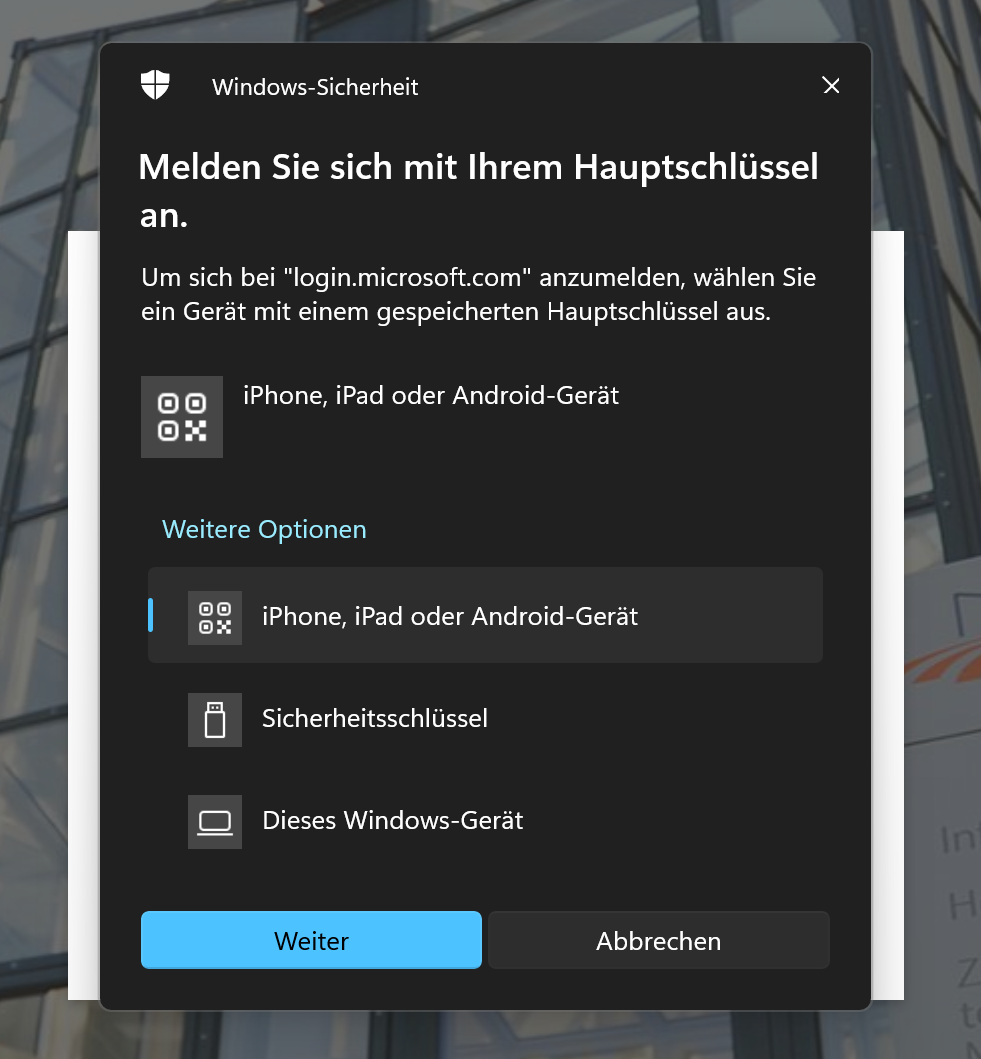
Then select one of the following options:
- “iPhone, iPad, or Android device”: Log in with a passkey that has been set up on a third-party device, e.g., a passkey on a private smartphone in the Microsoft Authenticator app.
- “Security key”: The configured security key (YubiKey) with PIN.
- “This Windows device”: Use Windows Hello for Business to sign in with the set-up methods PIN, fingerprint, or facial recognition.
Confirm your desired sign-in method with “Next”.
If you want to go back and use a sign-in method with password entry, click “Cancel”.
Note: The security key and iPhone, iPad, or Android device methods are always displayed in pairs, even if only one of them is configured. The inactive method cannot be used.
If you are offered the option of logging in with a security key (e.g., YubiKey), Windows Hello for Business, or a passkey, but would prefer to log in with a password instead (password + authenticator app/SMS/call), please proceed as follows:
Note: The security key and iPhone, iPad, or Android device methods are always displayed in pairs, even if only one of them is configured. The inactive method cannot be used.
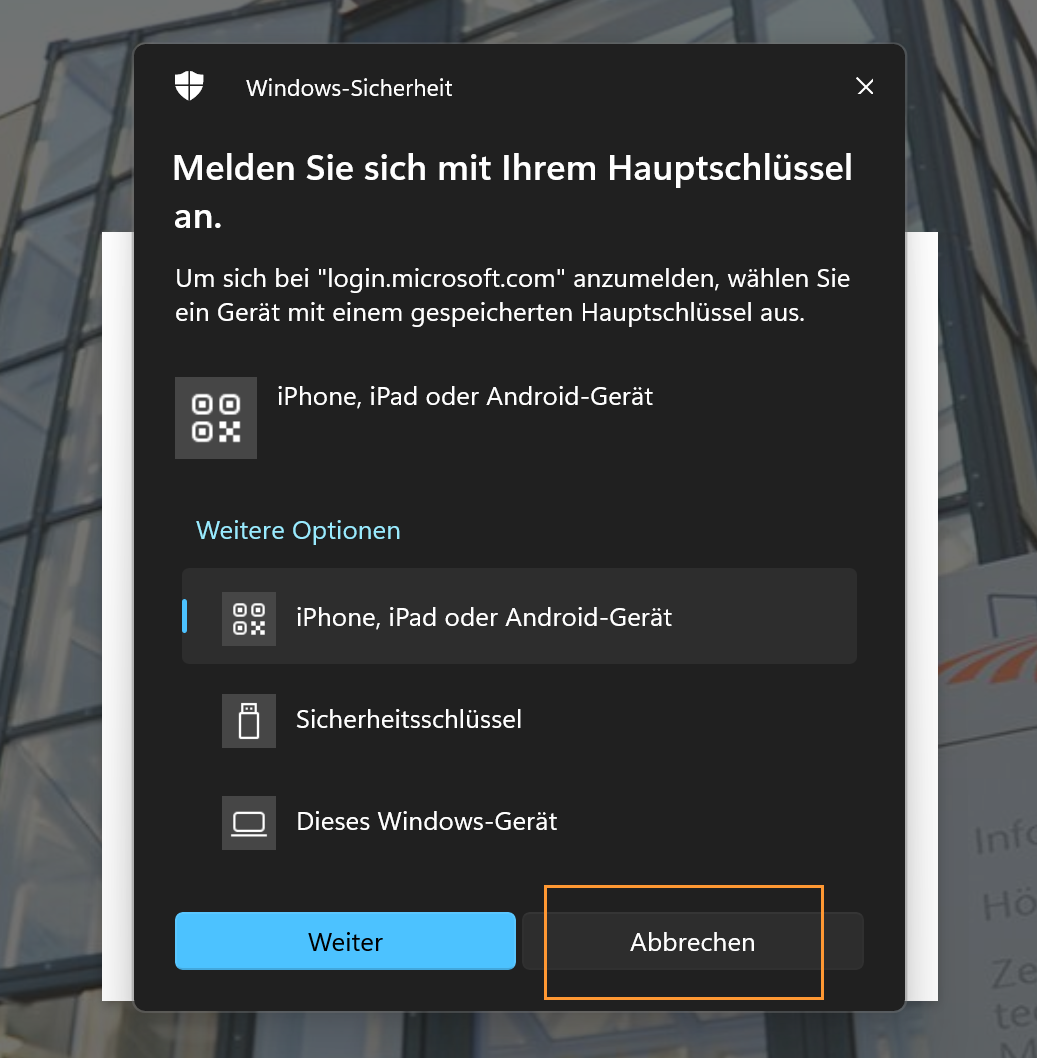
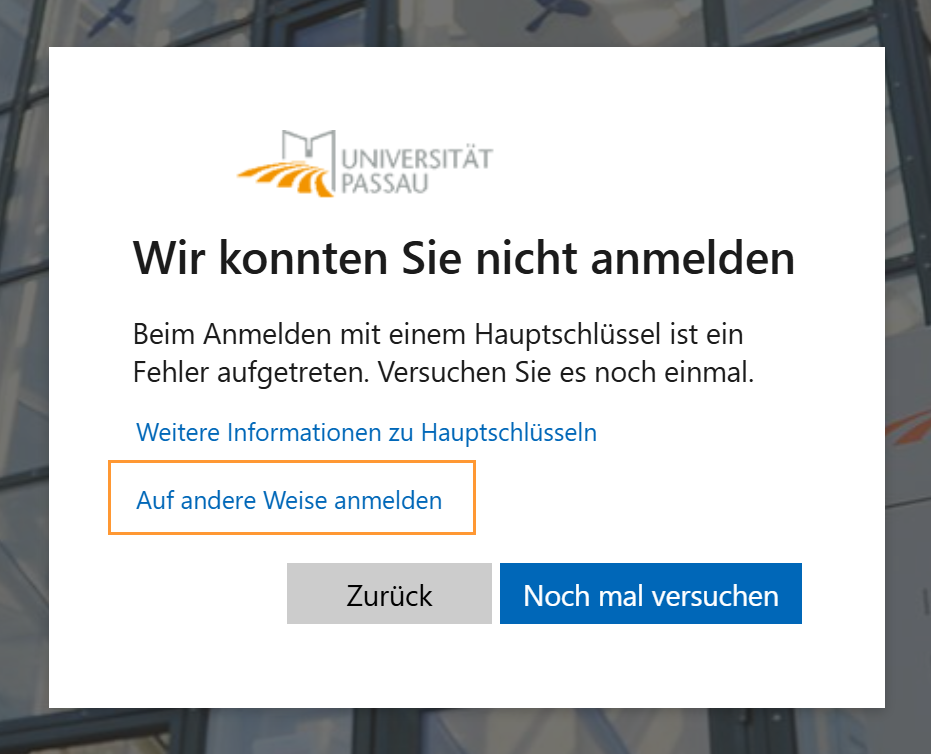
In the dialog box that appears, click “Cancel” and then select the desired method under “Sign in another way”.
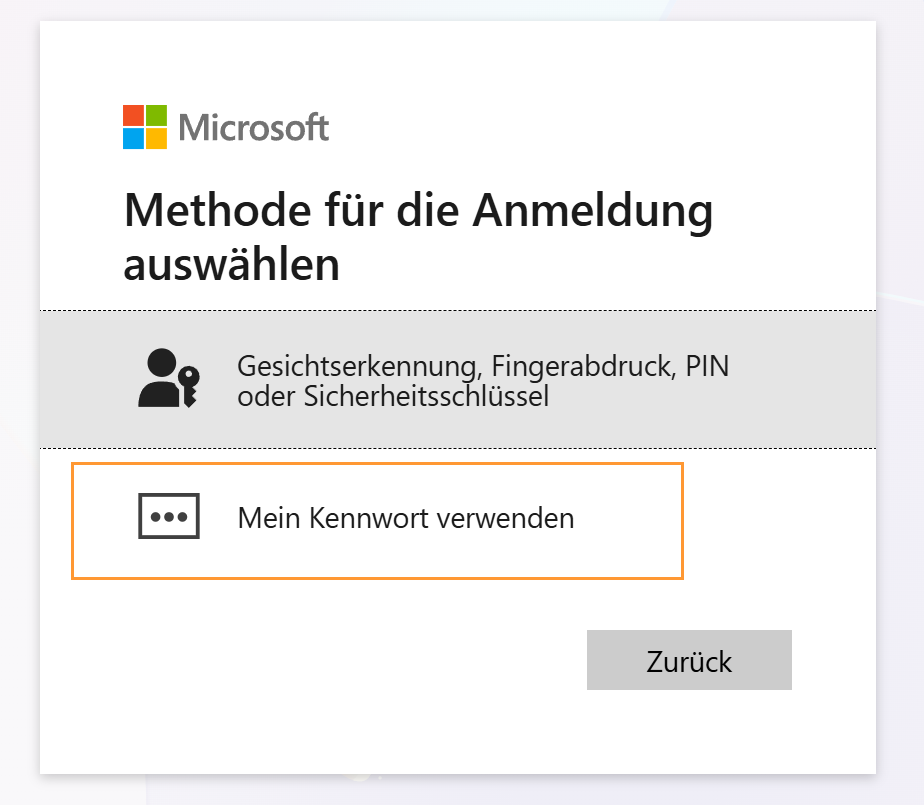
You can now choose between the password entry method and the password-free methods “Face ID, fingerprint, PIN, or security key”.
Select “Use my password”.
General information on registration
We generally distinguish between two groups of login methods:
Passwordless methods:
- Security key (e.g., YubiKey) with PIN entry.
- Windows Hello for Business (PIN, fingerprint, face).
- Passkey on a smartphone with Microsoft Authenticator app.
Methods requiring password entry:
- Password + confirmation via the Microsoft Authenticator app (push notification).
- Password + one-time code via any Authenticator app.
- Password + one-time code via SMS or phone call.
Single sign-on on company devices
When you log in to your work device with your ZIM ID and MFA, you automatically receive Single Sign-On (SSO) for many services. This means that after logging in once with MFA, you can use all connected services without having to log in again.
For applications that use Microsoft SSO, the login information is not stored in each individual application, but centrally via the system login on the service device.
What does that mean in practical terms?
- When you log out of an application (e.g., StudIP), your Microsoft SSO session remains active in the browser or on your work device. The next time you click "Login", Microsoft will automatically log you back in. You won't need to re-enter your password or MFA.
- Closing and reopening the browser does not usually end the SSO session. As long as the device is logged in to the work device and the SSO session remains active, you will remain logged in.
This behavior is technically intentional and corresponds to the basic principle of SSO: One login is sufficient for accessing many services.
Single sign-on on personal devices
For personal devices: Single Sign-On (SSO) within a browser session.
After logging in to a service in the browser using multi-factor authentication (MFA), you will have access to other connected university services without having to log in again. On personal devices, the login with Microsoft Single Sign-On is saved in the browser as soon as an MFA login has been performed within a browser session.
So, if you only sign out of the application, your Microsoft session in the browser remains active. The next time you click "Log in", you'll be automatically logged back in—without having to enter your password or MFA again.
The SSO session is limited to the current browser session:
- As long as the browser is open: automatic re-login.
- When the browser is completely closed: the session ends. Therefore, after reopening the browser, login is required again, including MFA.
To end all existing sessions, you can use the "Sign out everywhere" function in the administration portal of your Microsoft account. This option ends all open sessions, apps, and browser logins for M365 services associated with your account.
1. To do this, access the overview of your Microsoft account: https://myaccount.microsoft.com/.
2. Go to the "Overview" tab and click "Log out everywhere" in the bottom left corner, then confirm the following message with "OK".
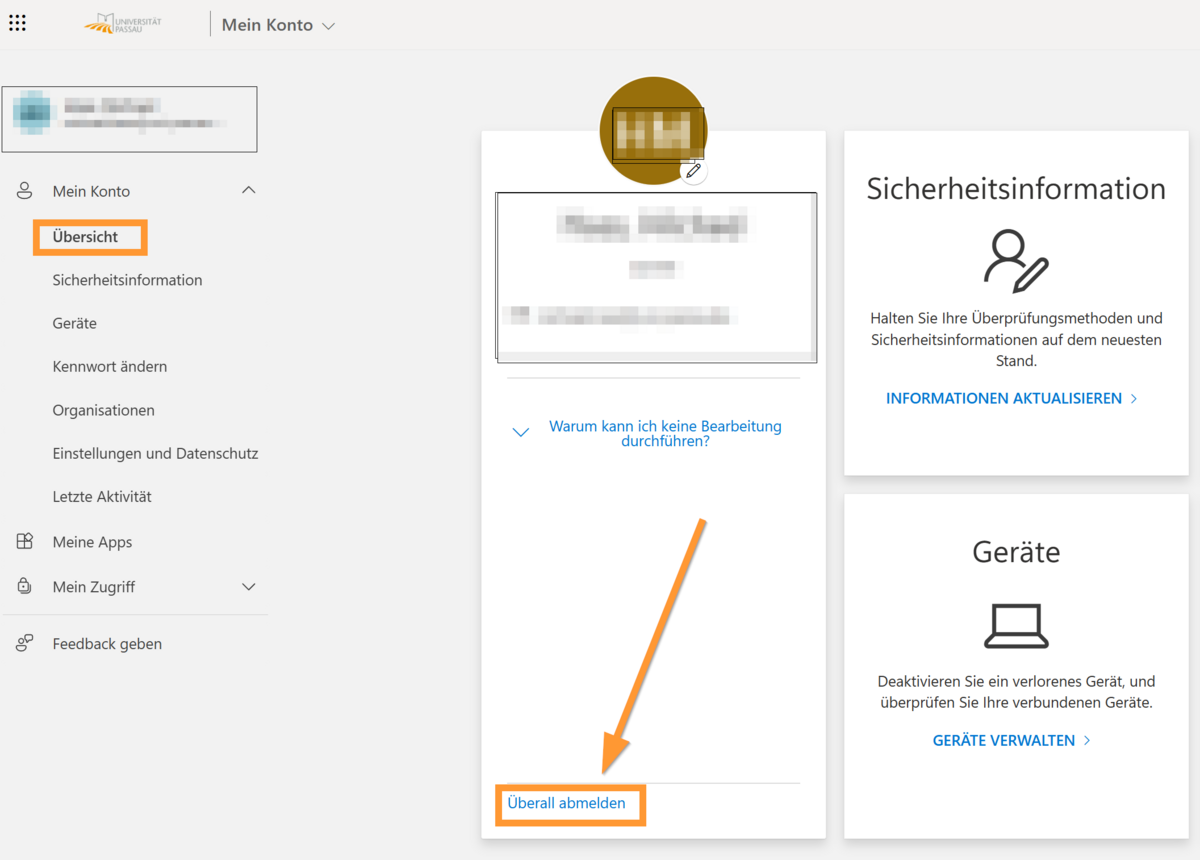
Overview of security information for your account
You can manage your MFA methods via the page https://aka.ms/mysecurityinfo. This includes adding, changing, or deleting login methods, as well as viewing your recent login activity.
You can view and manage all login and MFA methods set up for your account under the "Security Information" section on the page https://aka.ms/mysecurityinfo.
![[Translate to Englisch:] Übersicht_Konto_Sicherheitsinformationen](/fileadmin/_processed_/1/b/csm_%C3%9Cbersicht_Konto_Sicherheitsinformationen_blurred_11b2a92fd3.png)
Here you have the option to:
- View existing login methods.
- Add new login methods - Click "Add login method".
- Remove existing methods - Click "Delete".
You can find an overview of your recent login activity on the page https://aka.ms/mysecurityinfo under the "Recent Activity" section. You should be familiar with each listed login.
![[Translate to Englisch:] Letzte Aktivitäten](/fileadmin/_processed_/2/6/csm_%C3%9Cbersicht_Konto_Letzte_Aktivit%C3%A4ten_7d15df37cd.png)
Unusual Sign-In Activity in Your Microsoft Account – Usually Harmless
Unusual sign-in activity in your Microsoft account is often harmless and can frequently be explained by changing networks, new devices, or mobile access. Mobile access (e.g., via smartphones) and changing networks (switching from Wi-Fi to LTE) can cause sign-in locations or devices to be displayed differently than expected.
Here's how to check for an unusual entry:
- Check the date and time: Were you actually active yourself at that time?
- Check the application being used: Is this a known login to a known application via a known browser (e.g., logging into Outlook web via Edge)?
- Check IP address: Does the registration originate from an unusual location or a different country?
- Device check: Does the displayed device/operating system match your own (e.g., Windows PC, Android smartphone)?
Warning signs of possible unauthorized access (These checks help you distinguish between technical anomalies and possible security incidents):
- Login from another country.
- Use of an unknown application (operating system, browser, app).
- Numerous unattributable failed login attempts.

 Share this page
